Use Numonis AI
Find company information, review proposed actions, and continue saved conversations with Numonis AI.
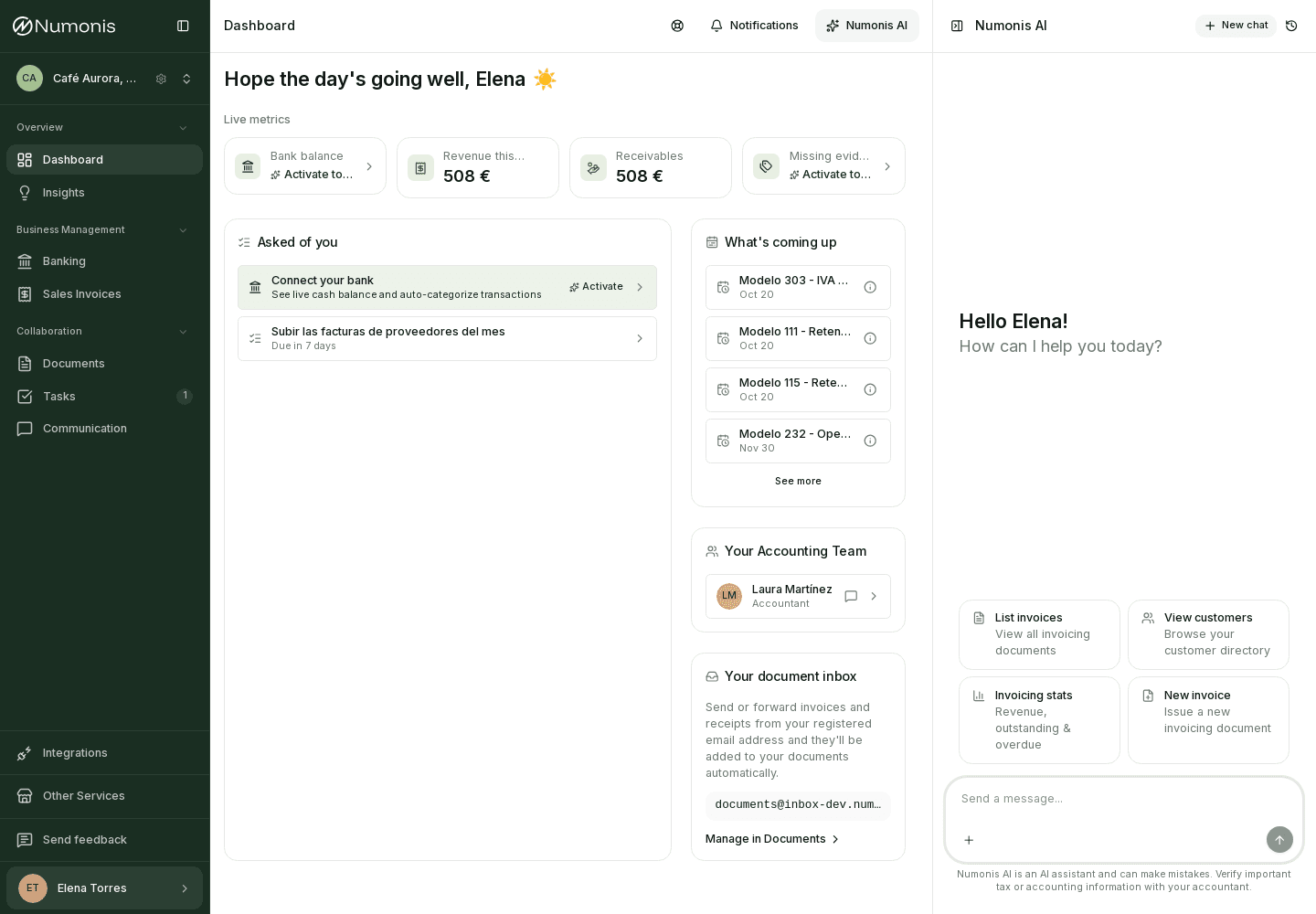
Numonis AI shows the company scope alongside its answers and proposed actions.
Your client chat uses the company selected in the app. Company results and proposed actions identify that company. Switching companies opens that company's chat and history. AI Chat must be enabled for the company.
Turn Numonis AI on or off
In Settings, use AI experience to show or hide Numonis AI. The first time you open chat, accept the AI consent. Without that consent, chat does not answer. If you turn the experience off, the Numonis AI button disappears. You can turn it on again in Settings.
Not now turns the experience off. Closing the consent panel leaves your choice pending. Turning the experience off also blocks chat requests and proposed actions on the server; it keeps your saved conversations and consent record. If the consent version changes, review and accept it again before you use chat.
How to get there
- If the feature is enabled for your current organization, press Numonis AI in the top-right corner of the header. On narrow phone screens, the button shows only its icon.
- The chat opens in a panel on the right when there is enough room for the page and chat. On a phone or a narrow tablet layout it opens full screen; press Escape or the collapse icon to return to the page. The docked chat can stay open while you move between pages. Numonis remembers whether the panel was open.
- Hide it by pressing Numonis AI again, or the collapse icon at the left edge of the panel header (tooltip: Hide). Your conversation and unsent draft are kept when you reopen it. Press the history icon on the right of the panel header to open the compact Conversations list. Choose an existing chat or New chat; the list closes after your selection. Click outside the list or press Escape to dismiss it.
- On desktop, drag the divider on the left edge of the panel to adjust its width. You can also focus the divider and use the left or right arrow keys. Numonis remembers your preferred width and fits the panel to the available space. Page actions and filters wrap as the page gets narrower; Analytics charts also adjust their columns.
On a phone, the app header stays visible inside messaging conversations when AI is enabled. When the chat opens, keyboard focus moves to its title without opening the on-screen keyboard. Focus stays in the AI chat while its panel is open. Press Escape to hide the panel and return focus to the control that opened it. If the history list or a tooltip is open, Escape dismisses it first. Switching organizations starts a new chat and clears the unsent draft and queued prompts.
The panel and message entrance animations follow your device's reduced-motion preference.
When you edit an earlier message, Escape cancels the edit and keeps chat open. An open attachment or document preview stays usable if chat switches between docked and full-screen layouts.
How to ask
- Write a specific question.
- Include period, document, invoice, or customer if you know it.
- Review the answer, company name, period, and any result pages.
- For accounting or tax advice, use Ask your accountant when offered, or open Communication.
Use Previous and Next on the result list you want to browse. That list keeps its filters after another question or a reload.
A question for a total or for VAT answers with that figure. Numonis AI lists invoices when you ask to see them.
Issued-invoice totals include certified and sent invoices, simplified invoices, and credit notes. Decreasing credit notes are subtracted. Amounts use the recorded EUR snapshots for foreign currencies; if a snapshot is missing, that total is unavailable. Recorded VAT is not a calculation of tax payable.
"What is my revenue?" uses P&L net revenue from uploaded accounts for the current year, unless you name another year. The answer identifies the year and uploaded periods. Missing P&L data is not zero revenue. If the current year's P&L is missing and you did not request a specific period, the answer can fall back to all-time invoiced revenue net of VAT from confirmed fiscal invoices created in Numonis; it labels that different source and period. Invoice totals including VAT remain separate.
Ask which month had the highest revenue, expenses, or net profit to get the month and amount from uploaded P&L reports. The comparison covers only months with a recorded amount for that metric and names all tied months. Missing values are not zero. The chart appears below the reply and includes a table for screen readers. Monthly comparisons use calendar years in Europe/Madrid. Uploaded reports do not establish that the current month is complete or provide daily totals or custom fiscal-year totals.
Review actions before saving
Numonis AI can prepare a task, a draft invoice or quote, and other supported changes. A proposal alone does not make the change.
When creating or updating a draft, you can ask for an existing invoice series by name. Numonis AI looks up the available series for the selected company and document type. Check the proposed series before confirming.
- Check the company, record, and proposed values. Draft invoice and quote previews show each line's quantity, VAT rate, and amount before confirmation. A missing quantity appears as —. Open All action details to read every field and line item.
- For updates, review the values before and after the change. For an email, review its recipients, complete body, and attachment names.
- Choose Confirm to execute the action or Cancel to discard it.
Email confirmation queues the email; it does not prove delivery. Expired proposals or records changed since the preview require a new proposal. If the result says the action is still being checked, reload the conversation to check its status before requesting the same action again.
Notification actions show Your notifications and affect your own notifications across companies. Check the notification shown before confirming. Archiving all notifications archives only those already read; unread notifications remain. Team removal proposals show the person's name, email, and role before confirmation.
Saved conversations retain completed and cancelled actions. A change to your role or access can make an earlier conversation unavailable; start a new chat using your current access.
Drag files into the chat composer to attach them to your question. This keeps them separate from uploads to Documents, even when that page is open.
Useful examples
- "What expenses do I still need to justify this month?"
- "Show me issued invoices that are unpaid."
- "What is the total VAT on invoices issued this year?"
- "How did revenue evolve over the last six months?"
- "Show the upcoming dates recorded in my fiscal calendar."
- "Create a personal task to collect this month's supplier invoices."
Limits
Numonis AI can read your own tasks and prepare tasks for you. Team invitations and removals require company administrator access.
Fiscal calendar results come from obligations configured for the company. An empty calendar does not establish that no filing is due. Numonis AI does not replace your accountant or provide definitive tax advice.