Use the Numonis platform on mobile or as a PWA
Install the Numonis platform on your home screen, navigate on mobile, and upload documents from your phone.
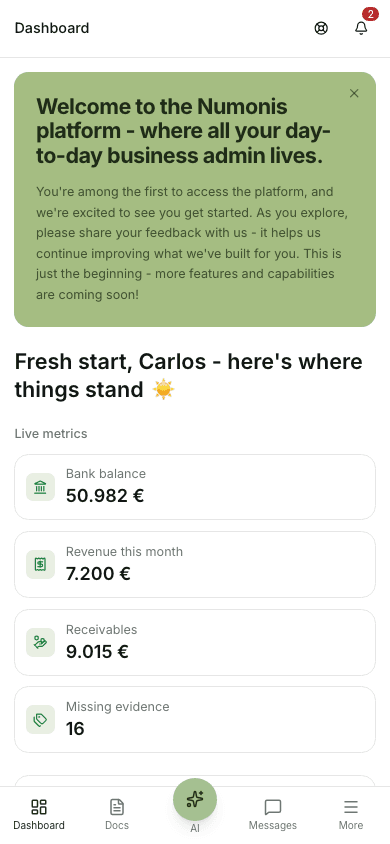
On mobile, the most-used sections appear at the bottom. The rest are in More.
You can use the Numonis platform from your mobile browser or install it on your home screen as a progressive web app. Your user account, organization data, and permissions are the same in both cases.
Install on your home screen
- Open the Numonis platform in your mobile browser.
- Open the browser menu.
- Choose Add to Home Screen, Install app, or the equivalent action.
- Confirm the name and icon.
- Open Numonis from the new icon when you want an app-like experience.
If you are unsure where the browser menu is, look for the share icon on iPhone Safari or the three-dot menu on Chrome and Android browsers.
Where to find sections on mobile
- Dashboard, Docs, and Communication appear in the bottom navigation. Docs opens Documents; Communication opens messages and meetings.
- Open More for Banking, Sales invoices, Tasks, Other Services, Settings, and Help.
- If Numonis AI is enabled for your current organization, its icon appears in the top-right corner of the header. Press it to open the chat, and use the collapse icon at the left edge of the panel header to hide it.
Upload photos and files from mobile
- Open Documents.
- Press Upload.
- Choose Take Photo, Photo Library, or Files depending on your device.
- Make sure the document is readable before uploading.
- Upload one document per image or file when possible.
From mobile, you can take a photo and upload it directly without scanning it elsewhere first. Use good lighting, keep the full document inside the frame, and retake the photo if totals or tax details are blurry.
App updates
While online, Numonis checks for a new app version when you open it or return to it, and downloads updates automatically. When an update is ready, an Update available popup offers Update now or Later. Update now reloads the app, so save your work first; unsaved changes will be lost. The button stays disabled while saves are running. Later lets you continue working, and the popup returns when you come back to the app. You do not need to reinstall it from your home screen.
If you still see an older interface, save your work, fully close Numonis, and open it again while connected to the internet.
Offline use
The app shell can open during an outage, but live financial figures are unavailable. A connection message appears when Numonis cannot reach the server. Reconnect and press Try again. Numonis needs a connection to upload documents, send messages, refresh banking, or sync tasks.