Connect a bank account
Connect a bank account through open banking or use bank statements when a connection is not available.
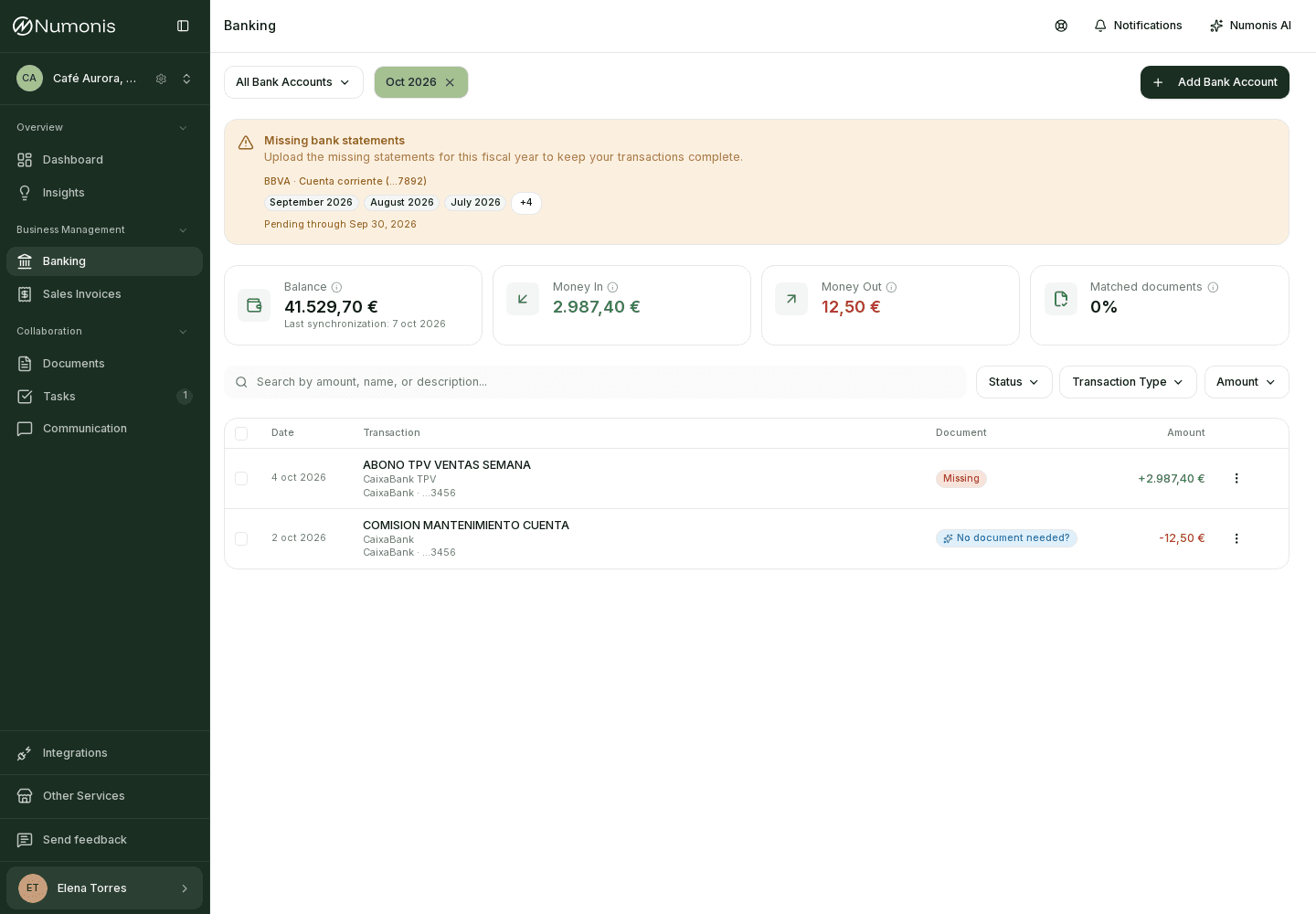
When you already have an account connected, you will see balance, last sync, and recent transactions.
Connecting a bank account lets the Numonis platform show transactions and helps your accountant relate them to invoices, receipts, and supporting documents.
Before you connect
- Connect bank accounts used for business activity.
- Ask your accountant before connecting a personal bank account that mixes personal and business movements.
- If the bank account cannot be connected through open banking, upload bank statements periodically from Documents.
- If you are unsure whether a bank or credit card is supported, try the connection flow or ask Numonis support through Communication.
How to get there
- In the sidebar, press Banking.
- If there are no connected bank accounts, Numonis will show a welcome screen.
- Press Connect bank or Add bank account.
How to connect through open banking
- Select the bank country if Numonis asks for it.
- Search for your bank in the list.
- Press Continue.
- Complete authorization on the secure screen from the banking provider. The bank may ask you to confirm access to older movements (from 1 January of this year).
- Return to Numonis and wait for the bank account to appear.
A new connection imports from 1 January of this year, or the last 90 days if that is later (January–March). Banks that only share 90 days still stop at 90 days. An existing connection does not fill older months: upload a statement from Documents for the missing period.
If Numonis asks for a primary contact
When an accountant connects a bank on behalf of a client, the company must have a primary contact assigned. If Numonis reports that the primary contact is missing, assign one to the company or ask an administrator to do so, then start the bank connection again. A successful login on the banking provider's screen does not complete the connection in Numonis while this requirement is missing.
If the bank sign-in does not respond
When the bank sign-in takes longer than usual, Numonis shows a notice above the connection window.
- Check the bank window. The bank may still wait for a confirmation in your banking app.
- If the bank window is blank or does not respond, close it and press Try again.
- If the problem continues, contact Numonis support through Communication.
If open banking is not available
- Upload a bank statement from Documents.
- After processing, the transactions appear in Banking. If the statement belongs to a bank account that Numonis does not know yet, Numonis adds the account, and your accountant confirms it.
- Your accountant reviews the statement. When your accountant corrects it, the transactions in Banking change too. If Numonis cannot read the statement completely, its transactions appear after your accountant corrects it.
- Repeat statement uploads periodically. The Banking page shows which months still need a statement, from the month your subscription started to last month.
What happens next
Numonis syncs transactions and shows the last update date. Some connections expire for security reasons; if that happens, you will see an action to refresh or reconnect the bank connection.