Link documents to transactions
Relate existing or new documents to bank transactions from Banking.
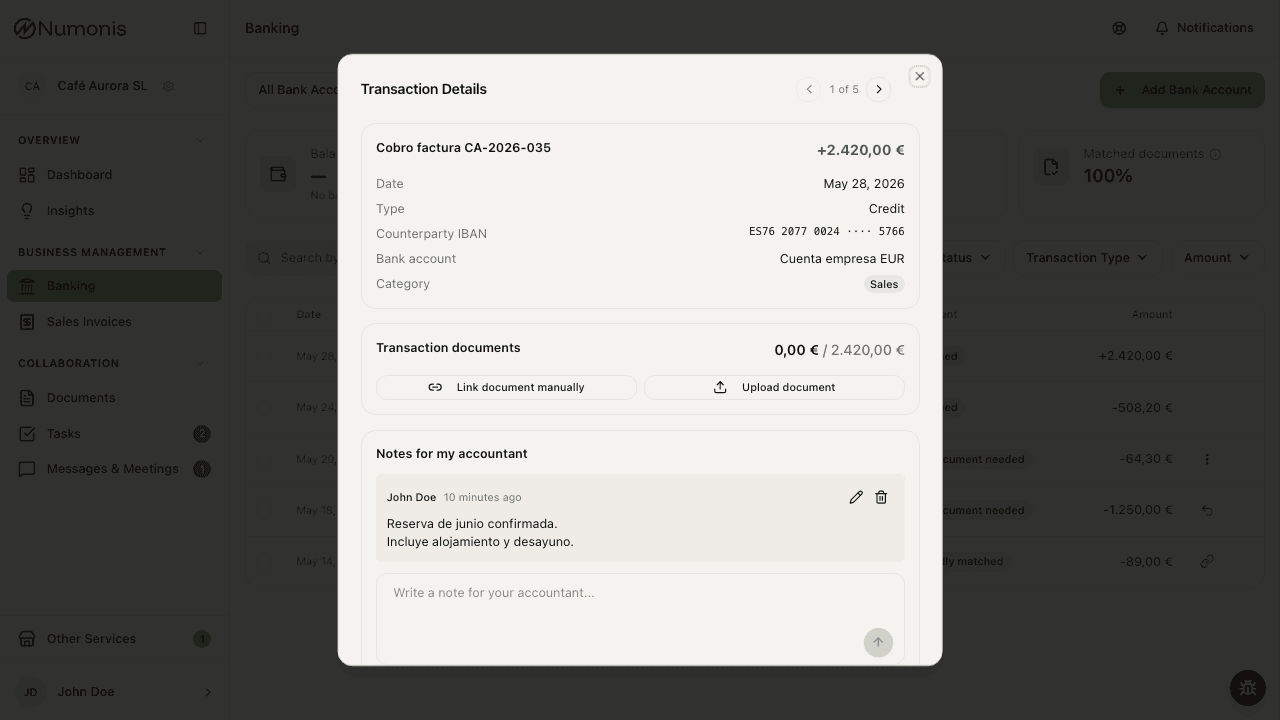
Use transaction detail to link an uploaded document or add one when the action is available.
Linking documents to transactions helps explain income and expenses. The goal is for your accountant to review each transaction with the related invoice, receipt, statement, or supporting document.
Link an existing document
- Open Banking.
- Open the bank account and transaction.
- Press Link document manually.
- Search for the document by part of its name or invoice number, by supplier or customer, or by amount. You can type the amount with a comma or a dot (
22,12or22.12) and combine words, for exampleleroy 9,99. The invoice number also matches without separators, for example0140007R277529. Documents in the direction of the transaction show first, led by invoices with the same amount as the transaction. Documents in the other direction carry the Other direction label and show below, unless you type their invoice number or amount. Each invoice shows the supplier or customer, the invoice date, and the amount. - Tick every document you want to link. Preview one first if you need to confirm it is the correct document.
- Search again to add more — what you already ticked stays selected.
- Press Link, which shows how many documents you picked, to link them all at once.
A transaction can be explained by several invoices. Supporting documents that are not invoices settle the whole remaining amount, so link only one of those per transaction.
The search shows a document only after Numonis finishes processing it. When Numonis splits a file into several documents, the search shows each part, not the original file. Link the part that belongs to the transaction.
An invoice in another currency is converted at the exchange rate of the transaction day. A small difference from the bank amount still settles the invoice in full. When the invoice shows the amount charged to your card in the account currency, Numonis uses that amount instead of the exchange rate.
Upload a document from the transaction
- Open the transaction.
- Press Upload document.
- Drag the file in or select it from your device.
- Wait for Numonis to confirm the upload.
- The document stays associated with the transaction while it is processed.
If you are not sure what to do
Contact your accountant through Communication. Include bank account, date, amount, and transaction description so they can guide you.