Activate invoicing
Complete the initial Sales Invoices setup before creating sales documents.
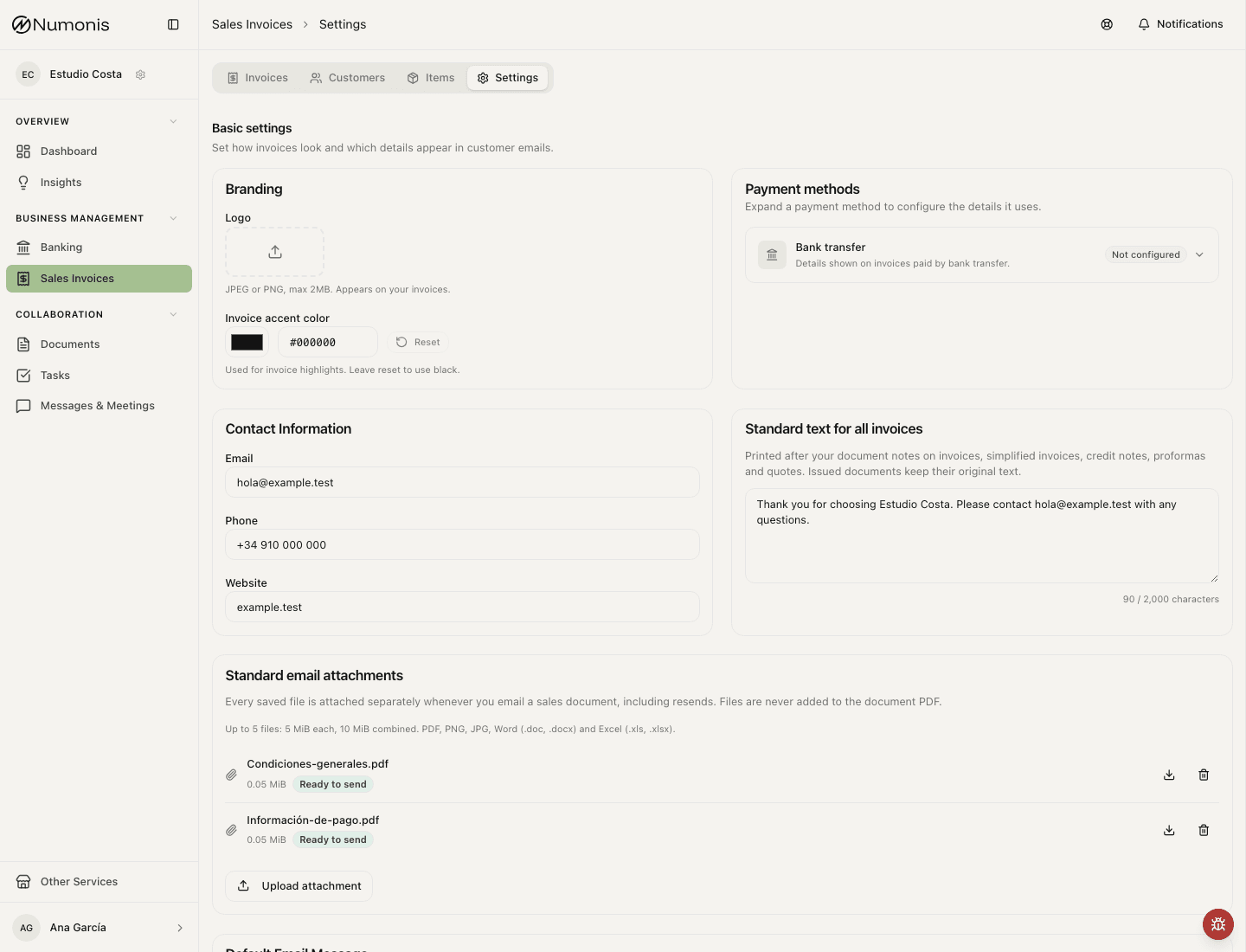
Invoicing settings show certification status and the business details used on issued documents.
The first time you use Sales Invoices, Numonis may ask you to complete an initial setup. This confirms your tax details, lets you choose a certification option when available, and prepares invoicing before you issue documents.
How to get there
- Open Sales Invoices.
- If a welcome screen appears, press Start.
- If you are already inside the module, open Settings and use the setup or certification action when it appears.
Setup steps
- In Certification, choose the option that applies to your business.
- If VeriFactu appears as available and you want to activate it, select it and continue.
- If it appears as Coming soon or you do not want to use certification yet, choose No certification.
- In Business details, review legal name, NIF/CIF, fiscal country, address, and legal representative.
- Press Complete setup.
- If you selected VeriFactu, follow the Registration step and sign the representation agreement. See Sign the VeriFactu agreement.
Saved details prefill the editable fields during setup. Review the legal name, tax ID, address and legal representative, and correct any details before continuing. Changes apply to invoicing and do not update the company profile. If your company profile has an address saved as a single text, it appears as a reference while you complete the separate address fields. Setup does not ask for an optional trade name; any saved trade name is retained.
Sign the VeriFactu agreement
VeriFactu invoices are reported to the tax agency through Numonis' certified provider. The provider needs a representation agreement signed by the legal representative of your business with a digital certificate. A correctly signed agreement is usually confirmed within minutes, with no ID upload and no manual review.
- Press Download Agreement. The PDF already includes the date and place.
- Open the PDF in AutoFirma or Adobe Acrobat Reader and sign it with the FNMT digital certificate of your business (the company certificate for a company, your personal certificate if you are self-employed). Only FNMT certificates are accepted for automatic approval.
- Upload the signed PDF and press Submit Signed Agreement.
If you do not have AutoFirma, download it from the firmaelectronica.gob.es page.
Only an organization administrator can start the VeriFactu registration and upload the signed agreement, because the agreement applies to the whole company. If you are not an administrator, ask one to complete these steps.
After the registration starts, you cannot change the NIF/CIF or the fiscal country, because the certification provider registers them with the tax agency. You can change them again if the registration is rejected. Before the setup is complete, you can also press Restart from scratch and then change them.
Legal representative
For a company, the legal representative's name, surname and ID number are required before registration can start. Fill them in Business details. Self-employed users register in their own name.
Certification statuses
- Not certified: you can prepare standard invoices without real-time fiscal reporting.
- Pending contract: the representation agreement still needs to be signed or uploaded.
- In review: registration was sent. A correctly signed agreement is usually confirmed within minutes.
- Active: certification is ready and you can issue certified invoices.
- Rejected: details must be corrected or registration must be retried.
If you need to change it later
- Open Sales Invoices.
- Press Settings.
- Find the certification block.
- Press Configure, Continue setup, or Retry if the action is available.
Common problems
I do not see VeriFactu
It may not be available yet in your environment or account. Use No certification if you need to continue and write to Numonis if you have a fiscal question.
The NIF/CIF is not accepted
Check for spaces, confirm the fiscal country, and make sure the format matches the identifier type.
The signed PDF is not accepted
The file must be the agreement downloaded from Numonis, saved with the signature embedded in the PDF. A printed and scanned copy, an image, or a PDF signed with a non-FNMT certificate is rejected. Sign again with AutoFirma or Adobe Acrobat Reader and upload the resulting PDF.
Registration is rejected
The screen shows the reason returned by the certification provider. The most common cause is that the digital certificate used to sign has no powers of representation for the company. Sign again with the legal representative's FNMT certificate or with a representative certificate and press Try Again.
Registration stays in review
Confirmation normally arrives within minutes. If the status does not change after a few hours, open Communication and ask Numonis.