Document types and drafts
Understand invoices, simplified invoices, corrective invoices, proformas, quotes, and actions from document detail.
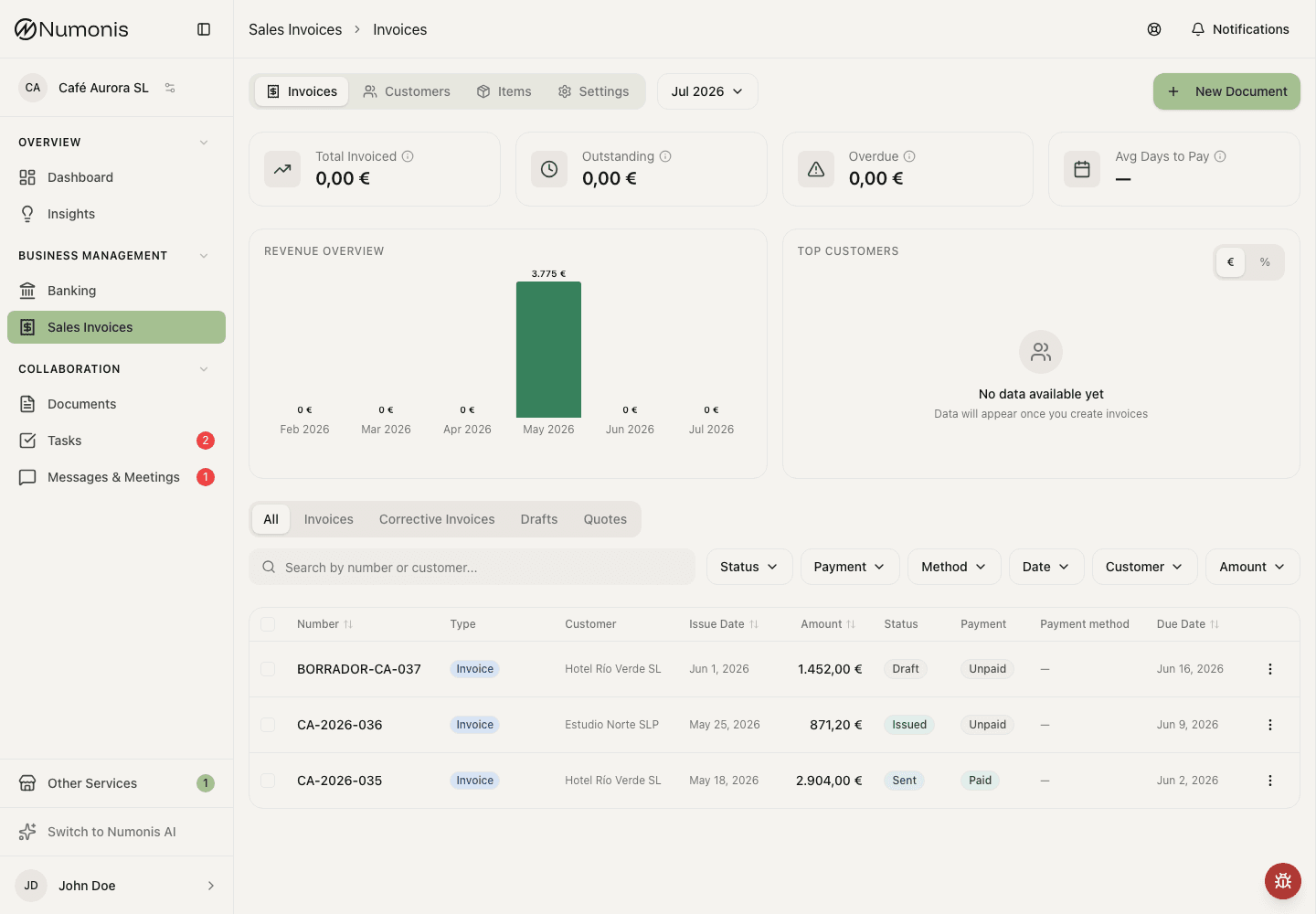
The list lets you filter documents by type, status, payment, date, customer, and amount.
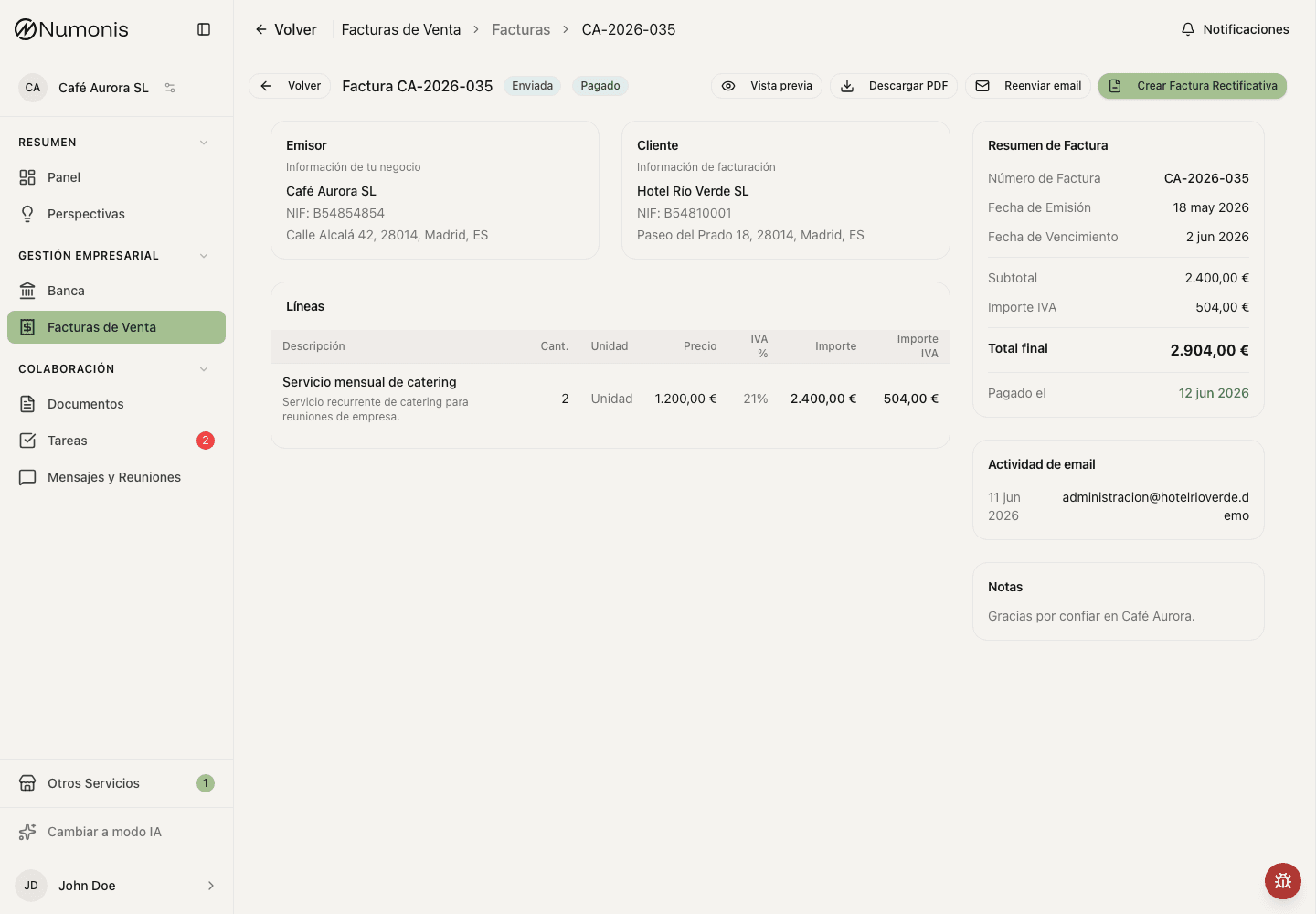
Document detail shows actions such as edit draft, edit eligible invoices, edit quotes or proformas, finalize quotes or proformas, issue, send, download, mark as paid, or create a corrective invoice.
Sales Invoices can show several sales document types depending on your account configuration. They do not all have the same fiscal effect or available actions.
How to choose a document type
- Open Sales Invoices.
- Press New Document.
- Choose the document type Numonis shows.
- Complete the data and save, preview, finalize, or issue it as appropriate.
You can change Document type without discarding the data already entered. The same selector is available when you edit a draft. If you switch to Corrective invoice, select the original invoice or enter its external reference before saving or issuing it. The type cannot be changed after the draft stage.
Document types
- Invoice: standard sales document for goods or services.
- Simplified invoice: sales document for allowed lower-detail cases.
- Corrective invoice: corrects a previously issued invoice or simplified invoice.
- Proforma invoice: commercial proposal without fiscal effect, if available in your account.
- Quote: estimate sent to a customer before work is confirmed, if available in your account.
Filter issued, certified, and sent invoices
Use the Status filter in All, Invoices, or Corrective Invoices:
- Issued shows fiscal documents that are ready but have not been sent yet. This includes certified invoices.
- Certified shows certified fiscal documents that have not been sent yet.
- Sent shows fiscal documents whose current version was sent by email from Numonis.
The filter does not include quotes or proformas. Switching to Drafts or Quotes clears it.
Revenue by billing item
Open Items and choose Revenue by item in the statistics selector to see invoiced revenue by billing item. Overview is the default and keeps the existing item summary and charts. The item list and its controls remain available in either statistics view. The breakdown uses confirmed invoices, simplified invoices, and corrective invoices created in Numonis. A decreasing corrective invoice reduces the billing item it corrects.
Each row is that item's revenue and its percentage of total invoiced revenue for the selected dates. A catalog item keeps one name. A line typed by hand, with no catalog item, uses its description. Lines with no description are grouped as No billing item.
Use Month, Quarter, or Year to change the time grain. Set From and To to change the date range. The default range is the current year to date, grouped by month. Incl. VAT and Tax base follow the control at the top of the Items page.
Dates use the Europe/Madrid calendar and include both endpoints. Drafts, quotes, proformas, cancelled documents, and uploaded invoices do not count. Amounts use the EUR conversion saved when each invoice was issued, including its discounts. Incl. VAT follows the invoice total after withholding; Tax base excludes VAT and disbursements (suplidos).
An item remains in the chart when sales and corrective invoices cancel out across different periods. Percentages are zero when the total is zero; otherwise, rounded percentages sum to 100%, including negative shares from corrections. The bars show five items and group the remaining items as Other. Open View chart data for the same figures in a table.
You can ask the assistant for the same mix. For example: year-to-date revenue and the percentage of total revenue for each billing item. The chart in the reply uses the same grain and date range filters.
Common statuses
- Draft: you can edit and preview it before issuing a fiscal document or finalizing a quote or proforma.
- Processing: Numonis is generating or registering the document.
- Issued: the document officially exists. Unpaid non-certified invoices and corrective invoices may still show Edit invoice if no corrective invoice has been issued for them.
- Certified: the invoice was issued with certification when that option is active.
- Sent: the document was sent by email from Numonis. If you edit an eligible sent invoice, send the corrected invoice again.
- Unpaid: payment has not been marked as received.
- Paid: payment has been marked as received.
- Error: details must be corrected or an action retried.
- Cancelled: the document should no longer be used as an active document.
Edit a draft or eligible invoice or corrective invoice
Draft PDFs downloaded from the preview use the document type, draft label, and invoice date: for example, Invoice_Draft_2026-10-13.pdf. The labels follow the document's language. If the invoice date is empty, Numonis uses the draft's creation date, or today's date for an unsaved preview.
- Open Sales Invoices.
- Enter Invoices.
- Filter by Drafts or search for the document.
- Open the document.
- Press Edit draft, Edit invoice, Edit quote, or Edit proforma if the action appears.
- For a draft, change Document type if needed, then correct the remaining data and save.
- If you edited a sent invoice, send it again so the customer receives the corrected PDF.
Quotes and proformas receive a number when you save or duplicate them. If you change the series on a draft, saving assigns the next number from the destination series. For example, a new series configured to start at 234 assigns 234, then continues with 235. Saving again without changing the series keeps the assigned number. The original series counter does not move backwards, so changing series can leave a gap. Finalizing keeps that series and number.
Create a corrective invoice
- Open the invoice you need to correct.
- Press Create corrective invoice if the action appears.
- Review the original invoice selected.
- Enter the correction reason.
- Adjust amounts, taxes, and lines.
- Issue the corrective invoice when it is ready.
Certified invoices, paid invoices, documents linked to certification processing, and documents that already have a corrective invoice cannot be edited directly. Use a corrective invoice or ask Numonis before acting.
Original invoice issued outside Numonis
Create a new Corrective invoice and choose Invoice issued outside Numonis in the original-invoice section. Enter the original number including its series, issue date, and whether it was a standard or simplified invoice.
Select the same customer and currency as the original invoice. A customer is optional for a simplified original. Enter the correction reason and the adjustment lines: use the amount being increased or decreased, not the new total of the original invoice.
For a non-EUR invoice, enter the exchange rate used for the original invoice as 1 EUR = X units of the invoice currency. Numonis reuses that rate for the correction; it does not fetch a current rate.
Review the PDF and issue the correction. Its PDF includes the original number and date. Numonis stores this reference without importing or reissuing the original sale.
Finalize a quote or proforma
- Open the draft quote or proforma.
- Press Preview & Finalize from the create or edit page, or Finalize from detail.
- Review the PDF preview before confirming.
- Confirm finalization when the document is ready to send or convert.
- Return to detail to edit, download, send, duplicate, or convert it.
Finalizing assigns the series and number and prepares the PDF. It does not certify the document or create fiscal accounting effects. The series and number stay fixed. You can still edit the quote or proforma without creating a new draft.
Edit a finalized quote or proforma
- Open the quote or proforma.
- Press Edit quote or Edit proforma.
- Update the customer, dates, lines, taxes, or notes.
- Press Save Changes.
The document stays finalized. Saving does not create a draft and does not change the series or number. A partially invoiced or closed quote cannot be edited this way. Invoices and corrective invoices keep their own edit rules.
Convert a quote or proforma into an invoice
- Open the quote or proforma if your account uses that document type.
- Press Convert to Invoice if the action appears.
- Review customer, dates, lines, and taxes.
- Issue the resulting invoice.
- Return to detail to download, send, or mark it as paid.
Common problems
I do not see the type I need
Some types depend on invoicing configuration or the status of the original document. Review Settings or write to Numonis.
I cannot edit an issued invoice or corrective invoice
Only unpaid, non-certified issued or sent invoices and corrective invoices without a corrective invoice can be edited directly. If the document is paid, certified, processing, already corrected, or does not show Edit invoice, create a corrective invoice or ask Numonis.
Convert to Invoice does not appear
The action only appears for compatible quotes or proformas in allowed statuses.