Recurring invoices
Schedule invoices that repeat, review the Recurring tab, and pause or stop a schedule.
A recurring invoice creates the same invoice on the dates you choose. Use it for retainers, rent, or services billed for the same amount.
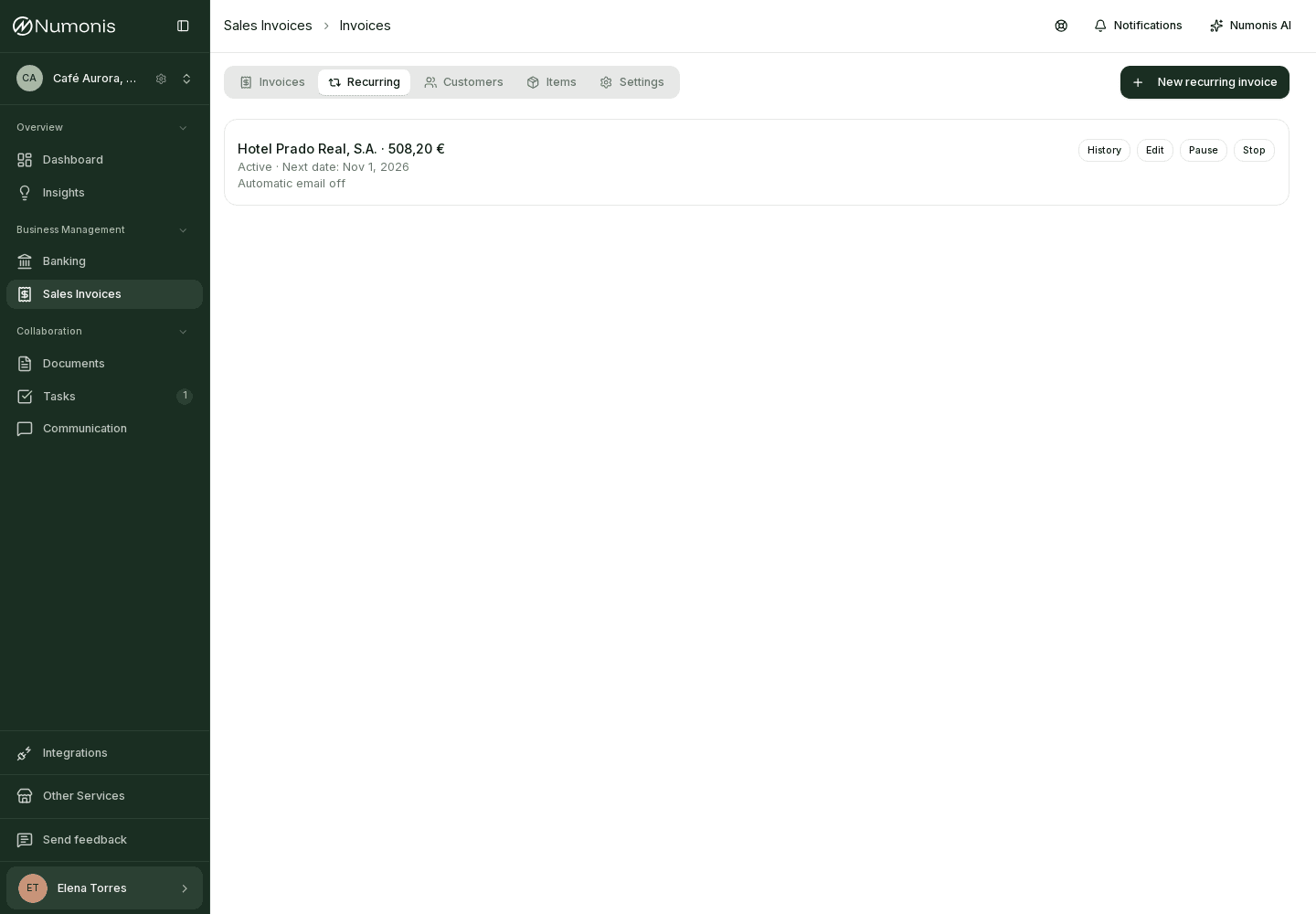
The Recurring tab shows each schedule name, status, and next date.
How to get there
- Open Sales Invoices.
- Press the Recurring tab.
If there are no schedules yet, you see No recurring invoices yet. Press New recurring invoice to open the form.
How to create the schedule
- Choose Invoice or Simplified invoice and complete the customer, lines, tax, currency, language, notes, Payment method, and series as usual. Save a new customer in the customer dialog first.
- Turn on Make this invoice recurring. Choose a start date of tomorrow or later. The first invoice is created on that date. Numonis names the schedule from the customer and the invoice total, for example
Acme SL · 121,00 €. You do not enter a name. - Choose a Repeat option based on the start date, such as daily, weekly on that weekday, monthly on that date or weekday, or yearly. Select Custom... for every N days, weeks, months, or years, or a monthly calendar rule. The first invoice always uses the start date. Month-end dates are adjusted for shorter months. There is no public-holiday adjustment.
- Add an optional end date. The schedule includes that date if an occurrence falls on it.
- Choose Create a draft for review or Issue automatically. Automatic issuance can also email each invoice after it is issued or certified. That option requires a customer email address. Select Preview and edit email to see a sample and customize the subject, subheading, and message. You can use tokens such as
{{invoice_number}}and{{total}}. Choose Use invoice email defaults to remove the customization. - Press Save schedule. No invoice is created immediately.
The invoice Payment method can be Unspecified, Bank transfer, Cash, Direct debit, or Payment by card. Saving a schedule with Direct debit requires Numonis to enable direct debit for your organization. Confirming appears only when editing a schedule that already uses it.
The invoice date in the form sets the reference for the due date and the optional supply date. Each generated invoice uses those same offsets. Lines and the rest of the content stay fixed until you edit the schedule. Customer and issuer details are read again when each invoice is created.
What you see on Recurring
Each row shows the schedule name, status, next date, and whether automatic email is on. The address used is the customer's current email. Open the customer to change it. Open an invoice from the history to see the real recipient and the delivery status.
The statuses are Active, Paused, Completed, and Stopped. After the last date, the schedule shows Completed. An invoice created on that final date still follows automatic issuance and email if those options were selected.
Needs attention appears when certification fails, the customer has no email address, or delivery is uncertain. Open the invoice and the email activity before you send it again. A missed date becomes a draft for review. It is not issued or emailed on its own later.
Pause, resume, or stop
- Pause stops new invoices until you press Resume.
- Edit changes future invoices. Invoices already created keep the email and content saved when they were created.
- Stop is permanent. Numonis asks you to confirm. Existing invoices and history are kept.